
Google Meet Companion mode joins a meeting on a second screen with your microphone, meeting audio and camera turned off. Google built it for one situation: you are in a room where another device is already carrying the sound, usually meeting-room hardware or a Nest Hub Max, and you want chat, polls, hand raising and screen sharing on your own laptop without starting a feedback loop. If somebody in your room is already the speaker and the microphone for the call, join in Companion mode. If nobody is, at least one person has to join normally, or the remote side will hear silence from your whole room.
That single rule, one sound path per room, explains nearly every echo complaint from a hybrid meeting. The rest of this note covers what Companion mode switches off, how to join it on a computer or phone, when adaptive audio is the better choice, and the edge cases that catch people out. Facts are from Google Meet Help, read 18 Oct 2026.
What Companion mode switches off, and what it leaves on
Google's help page is specific about the audio side. In Companion mode your microphone and the meeting audio are turned off to avoid echoes. To speak or to hear remote people, you rely on the meeting-room hardware or Nest Hub Max. Your laptop is not completely silent, though: it can still play notifications such as join requests, and sound from other apps.
- Microphone: off. Nothing you say reaches the call through this device.
- Meeting audio: off. You hear remote people through the room's speaker, not your laptop.
- Camera: off by default, and your tile is hidden from the grid to make room for other feeds.
- Hand raise: shows your avatar and name followed by "(Companion)" to everyone else.
- Self-View: optional. You can switch your laptop camera on so remote people see your face, but audio is still not shared and your tile never shows as the active speaker.
- Still working: chat, polls, Q&A, screen sharing and host controls, with some features depending on your Google Workspace edition.
Note what is missing: Companion mode does not filter or lower your audio. It takes your laptop out of the sound path, which a crowded room needs and a solo caller does not.
The rule underneath it: one sound path per room
Echo in a shared room is a loop. A remote colleague speaks, the room speaker plays them, and every open laptop microphone in that room picks up the playback and sends it back. Each laptop adds a copy with its own delay, and with enough open speakers the loop climbs into a howl.
There are three clean ways to break that loop, and Meet offers all of them. Pick one per room, not one per person.
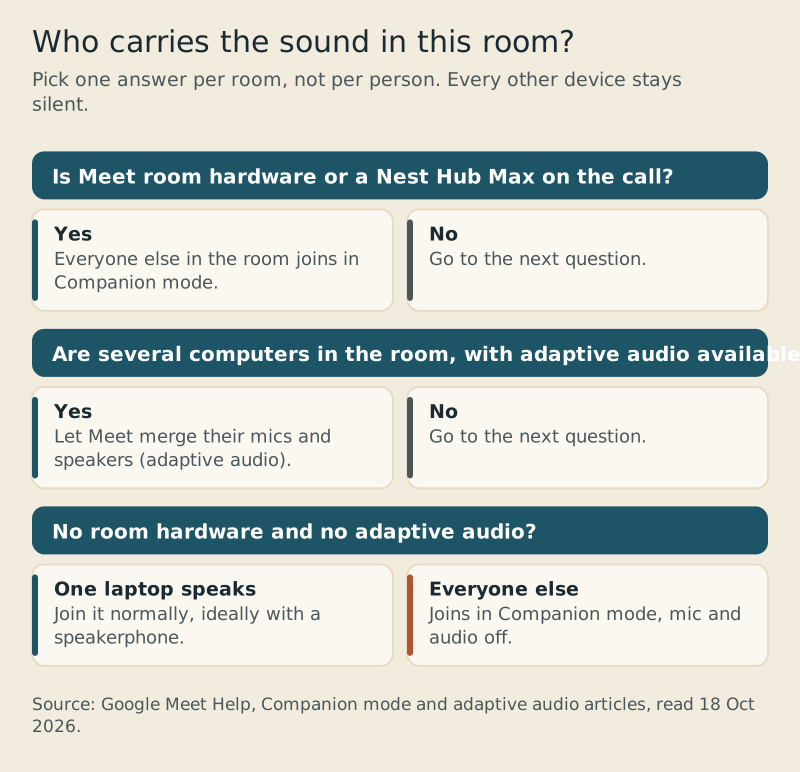
Room hardware on the call
This is the case Companion mode was designed for. The room system carries the audio and the camera for everyone at the table, and each person joins from a laptop in Companion mode for the personal tools. When a room device is on the call, Meet also offers Room check-in, which puts your name on the room's tile and in the participant list.
Several laptops, no room hardware
Here adaptive audio is the newer answer. When two or more computers in the same space join, Meet can merge their microphones and speakers instead of muting all but one. Google says Meet then picks the microphone closest to whoever is talking, and that you are still heard even if you mute your own mic, because every microphone in the room is in use. It needs an eligible Google Workspace subscription, so not every account will see it.
One laptop carries the room
If you have neither room hardware nor adaptive audio, choose one laptop, ideally with an external speakerphone, to join normally, and put everyone else in Companion mode. Our longer guide to echo in Google Meet covers the loop fixes for that one machine.
Companion mode or adaptive audio: the comparison
The two features solve the same problem from opposite directions. Companion mode silences extra devices; adaptive audio lets them all listen and talk, then coordinates them. Neither is better in every room, so here they are side by side.
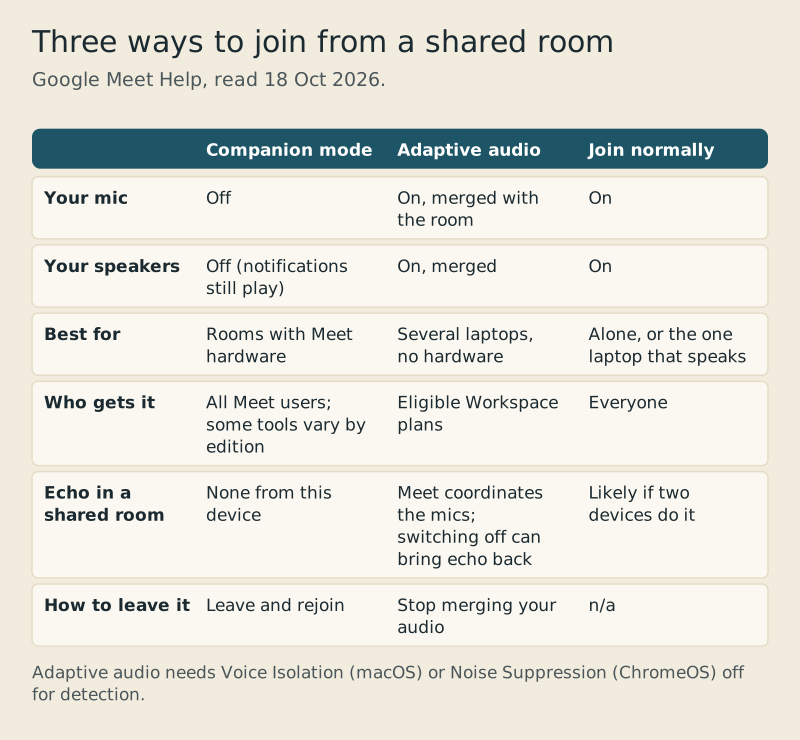
Two details from Google's adaptive audio page matter for anyone switching between them. Switching adaptive audio off, Google warns, may reintroduce echo or a howl, the very loop you were trying to avoid. And Meet only detects the other computers if their speakers are not fully muted and their microphones are not switched off outside Meet; on a Mac, Voice Isolation has to be off for detection, and on a Chromebook, ChromeOS Noise Suppression. Meet's own Noise Cancellation can stay on alongside it.
How to join in Companion mode
On a computer, the route is short. Open the meeting invite, click Join, and under "Other joining options" choose Use Companion mode. If you would rather not dig for the invite, type g.co/companion into your browser, then pick the meeting or enter its code. To share your screen straight away, g.co/present joins you in Companion mode and starts presenting.
- Open the invite and click Join, or go to g.co/companion.
- Under Other joining options, click Use Companion mode.
- If a room device is on the call, accept the Check-in prompt so your name appears on the room tile.
- Join at the start of the meeting. Chat sent before you connect does not appear in your stream.
On Android and on iPhone or iPad, open the Meet app, tap the meeting (or Join with code), and under your self view tap Use Companion mode. Google's Android page says Companion mode works on Android phones, tablets and foldables. The computer version of the same article still carries an older line saying Companion mode is not available on mobile devices, so if your app does not show the option, update it before assuming your account is blocked.
Getting your audio back
The most common Companion mode problem is not echo. It is a person who walked out of the meeting room, opened the laptop at their desk, and cannot hear anyone or be heard. Google's microphone troubleshooting page lists it first: make sure you are not in Companion mode, where the microphone and speaker are unavailable, and if you are, leave and rejoin. In the mobile apps the option is labeled Leave and rejoin to use your audio.
There is no in-call switch that hands the mic back. If you are still silent after rejoining normally, the problem is somewhere else, and our walkthrough of Meet audio that others cannot hear picks up from there.
Edge cases worth knowing before the meeting
Breakout rooms
Hosts can assign Companion mode participants to breakout sessions, but Google warns that people in Companion mode cannot speak or hear in them, and room hardware cannot be assigned to a breakout. If in-room people need a breakout, one of them has to disconnect the room device and rejoin on a laptop or phone with full audio.
Participant limits
Every Companion mode connection counts toward the meeting's participant limit, and so does each presentation. A twelve-person room where everyone joins in Companion mode uses twelve places for those laptops alone, before the room device and the remote people are counted.
Guests
People who are not signed in to a Google Account need the host's approval before they can connect in Companion mode.
No meeting room at all
Google says you can use Companion mode as a plain second screen, for example to keep a presentation on one display while your main screen shows more video feeds. That only works if your other device is in the meeting with full audio. Two of your own devices joined normally in one room is the classic echo setup, and Companion mode on the second one is the fix.
Questions we get
What is Companion mode in Google Meet?
It is a way to join a meeting on a second screen with your microphone, meeting audio and camera turned off. It gives people in a meeting room their own chat, polls, hand raising and screen sharing while the room device carries the sound, so the room does not feed back.
Does Companion mode use my microphone?
No. Google's help page says your microphone and meeting audio are turned off in Companion mode to avoid echoes. You speak and listen through the room hardware or Nest Hub Max. Your laptop can still play notifications and sound from other apps.
Can I use Companion mode without meeting room hardware?
Yes, as long as some other device in the room joins with full audio. That can be one laptop joined normally, ideally with a speakerphone. If several laptops in the room have adaptive audio available, merging them is the alternative.
Does Companion mode count toward the participant limit?
Yes. Google says Companion mode connections and presentations each count toward the limit, so a large in-room group uses one place for every laptop it connects.
How do I turn off Companion mode in Google Meet?
Leave the meeting and rejoin with the normal Join button. There is no switch inside the call. In the Android and iPhone apps, the option reads Leave and rejoin to use your audio.