
When Google Meet audio is cutting out, the gaps come from one of three places: the network between you and Google, the computer and browser running the call, or, rarely, Meet itself. You can tell which in about a minute. First work out whose audio is breaking up, then open Meet's Troubleshooting & help panel and read its network stability graph. A ragged graph means the connection. A steady graph with choppy sound points at the machine and the browser, where closing tabs, pausing extensions and dropping video usually fix it.
This guide covers sound that arrives in pieces: words dropping, a robotic stutter, a voice that freezes and catches up. If you hear nothing at all, that's a routing fault and our page on Meet audio not working for others is the right one. Steps below come from Google's Meet help and admin articles, read on 9 October 2026.
Cutting out for you, or for them?
Before any setting, find out whose stream is broken, because the fix lives on that person's machine. Meet gives you a neutral witness: the blue indicator at the top right of each video tile lights up when that person's audio is reaching the meeting. Google's audio help lists it among the first settings to verify. If the light keeps dropping out while someone talks steadily, that suggests their sound is reaching the meeting in pieces. A light that stays solid while you hear gaps puts the fault at your end.
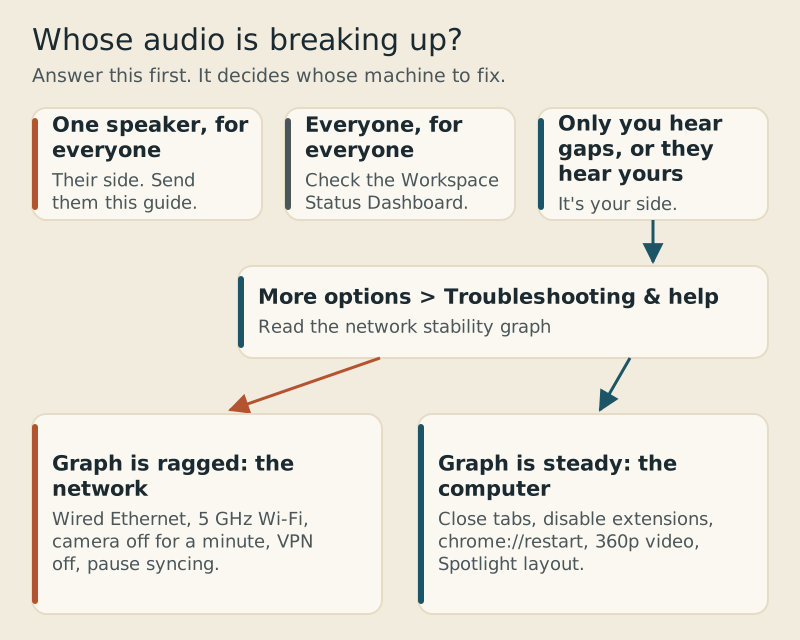
- Only one speaker breaks up, for everyone: their connection or their computer. Send them this page.
- Everyone breaks up, but only for you: your download side, your browser or your machine.
- Others say you break up, and you hear them fine: your upload side, or your microphone.
- Everyone breaks up for everyone: check the Google Workspace Status Dashboard before anything else.
That last case is rare, but it takes thirty seconds to rule out. Google's status page lists Meet with a color for its state: green for available, orange for a disruption, red for an outage. If Meet is orange or red, no local fix will help, and you've saved yourself an afternoon.
Read Meet's own network check
Meet watches your connection during every call. When it spots a network or device problem that may affect quality, a red dot appears on the More options button; Google notes the dot shows for 5 minutes, or until you click, and only once a day even if the problem continues. You don't have to wait for the dot. Open More options, select Troubleshooting & help, and look at the network stability graph, which shows your connection's performance in real time alongside the other diagnostics.
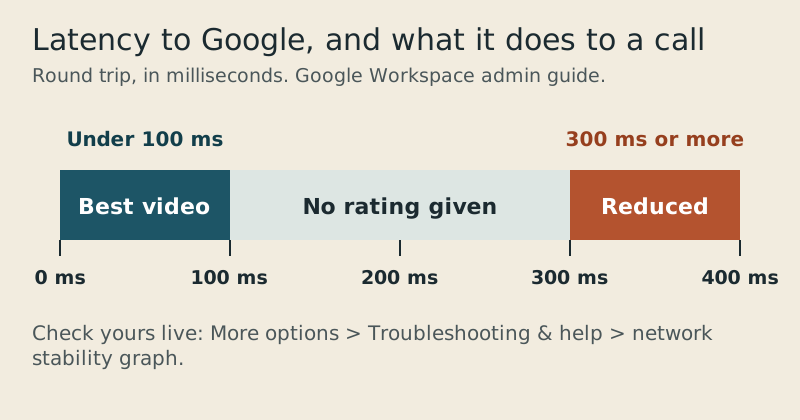
Google's admin documentation gives the numbers behind a good result. Google says video quality is highest when the round trip between your computer and Google takes less than 100 ms, and that Meet media quality is reduced once that latency reaches 300 ms or more. Google gives no rating for the range in between, so treat a figure climbing toward 300 ms as an early warning.
Google's admin article adds one more test worth stealing. If audio drops out for long stretches, suspect an unstable network. If the problem goes away when a participant mutes, the cause is more likely that participant's audio hardware. One thing to check in that case is microphone gain; Google warns that too much gain or sensitivity can cause echo or audio stuttering.
Browser causes: extensions, tabs and the window itself
Meet runs in a browser, so the browser's workload is the call's workload. Google's connection article lists the same short set of browser fixes in the same spirit: shed load, then remove anything that can interfere.
- Close tabs you don't need. Google's overheating guide points to Chrome's Task Manager for finding the tabs using the most CPU or memory.
- Turn off all extensions for one call, especially ad blockers and privacy tools, then restart the browser and rejoin.
- Don't stack another window over the Meet window; Google says window layering can add GPU load.
- Restart Chrome properly with chrome://restart rather than just closing it, so extensions that hold the microphone reset too.
One popular suspect is usually innocent. Chrome's Memory Saver puts unused tabs to sleep, and people worry it's freezing the meeting. Google's Chrome help lists active audio or video, including calls, and screen sharing among the things that prevent a tab from being deactivated, so a live Meet tab isn't one it puts to sleep. If you want certainty, add meet.google.com to the list of sites Chrome always keeps active, under Settings > Performance.
When the computer, not the browser, is overloaded
Older laptops and fanless models hit a different limit. Google's guide to an overheating laptop lists the practical levers: set send and receive resolution to standard definition (360p), switch to the Spotlight layout, which reduces CPU and GPU work, and disconnect ultra-high-definition displays, which can significantly improve performance. Outside the browser, Google suggests pausing streaming, games, cloud backups, file syncing and software updates for the length of the meeting.
Network causes and the fixes that last
If the stability graph is ragged, the fix is the path between you and Google. Google's quality article puts it plainly: bandwidth problems are a major cause of poor video quality, and the other side may struggle to hear you even when your own audio and video seem fine. Work through these in order, testing a call after each.
- Plug in a wired Ethernet cable if you can. It's the single test that most clearly separates Wi-Fi trouble from everything else.
- On Wi-Fi, use the 5 GHz band rather than the busier 2.4 GHz band.
- Turn off your camera for a minute. If the audio steadies, bandwidth was the constraint.
- Disconnect a VPN or proxy and rejoin. Google notes a VPN routes traffic through an extra location and can delay media.
- Pause downloads, backups and sync clients on every device sharing the connection.
Some causes belong to IT, not to you. Google says firewalls and security tools that inspect or alter Meet traffic may cause poor video quality, and that QoS rules on network equipment can clash with Meet's own traffic prioritization. If your audio only cuts out on the office network, those are the questions to put to an administrator, who can also look up your call in the Meet Quality Tool.

Edge cases
Bluetooth headsets
Google's help warns that some Bluetooth headsets work well for normal calls but poorly with Meet, and suggests updating headset firmware. If the cut-outs stop on a wired headset or the laptop's own mic, you've found your culprit. Check, too, that Meet is actually using the headset's mic; Google notes headsets may use the built-in microphone instead.
External monitors
Google lists disconnecting external monitors as a quality fix, and makes the related point that a monitor shouldn't be your selected audio output. If the monitor is the selected output, your sound goes wherever the monitor sends it, which on many desks is nowhere useful.
Two devices in one room
If the gaps sound more like echo or howling than dropouts, you're looking at a feedback loop, not a bandwidth one. Our guide to echo in Google Meet covers that, including the adaptive audio feature that lets several laptops share a room.
For audio that is clear but noisy, a different setting does the work; see Google Meet noise cancellation for where the toggle is and who gets it.
Google Meet audio not working properly: common questions
Why does my Google Meet audio keep cutting out?
Usually because the connection can't keep a steady stream going, or because the computer is too busy to process it. Open More options > Troubleshooting & help and check the network stability graph. Ragged means the network; steady means close tabs, turn off extensions and lower video resolution.
Why is my audio choppy only in Google Meet?
Often because Meet runs inside the browser, so tabs, extensions or a VPN that weigh on the browser land directly on the call. Restart Chrome with chrome://restart, disable extensions for one call, and disconnect the VPN. If other call apps also stutter, the network is the more likely cause.
How do I check my connection in Google Meet?
During a meeting, open More options and select Troubleshooting & help. The network stability graph shows your connection in real time. Google's admin guidance says quality is highest below 100 ms of round-trip latency and reduced at 300 ms or more.
Does turning off my camera fix audio cutting out?
Often, when bandwidth is the limit. Google says turning off your camera significantly reduces the bandwidth your connection uses, which helps stabilize your audio. If your computer is old or the network is poor, it also suggests joining without video or switching to a different device.
Is Google Meet down, or is it just me?
Check the Google Workspace Status Dashboard and find Google Meet in the list. Green means available, orange means a service disruption, and red means an outage. If it's green and only your calls suffer, the cause is on your network or your computer.